Today iam writing about how to take Screen Shot on Windows System.
To take a screen shot and save it as a picture

3.
In the Paint window, click Edit, and then click Paste

4.
When the image appears in the Paint window, click File, and then click Save As.

5.
In the Save As dialog box, in the File name box, type a name for the screen shot, and then click Save.

You can now print or e-mail the saved screen shot just like you would any other picture.
To take a screen shot and save it as a picture
| 1. | Click the window you want to capture. Press ALT+PRINT SCREEN by holding down the ALT key and then pressing the PRINT SCREEN key. The PRINT SCREEN key is near the upper right corner of your keyboard. (Depending on the type of keyboard you have, the exact key names on your keyboard may vary slightly.) Note: You can take a screen shot of your entire desktop rather than just a single window by pressing the PRINT SCREEN key without holding down the ALT key. |
| 2. | Click Start, click Accessories, and then click Paint. |
3.
In the Paint window, click Edit, and then click Paste
4.
When the image appears in the Paint window, click File, and then click Save As.
5.
In the Save As dialog box, in the File name box, type a name for the screen shot, and then click Save.
You can now print or e-mail the saved screen shot just like you would any other picture.




 US$ 109.02 billion (2009)
 It is possible to set the default web browser in Windows XP by going through Internet Explorer's Options, like we did in the tutorial explaining how to
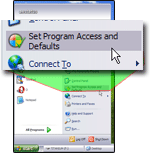
  Open the Start Menu, and click Set Program Access and Defaults: this will open the Add or Remove Programs window, with the Set Program Access and Default button selected on the left.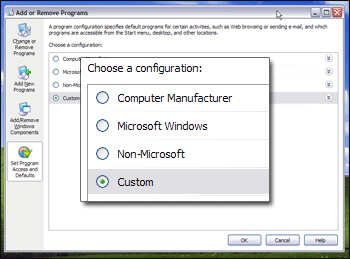
 Click on the Custom double arrow, and Windows XP will list all the default programs options it found for Default Web Browser, Default E-mail Program, and Default Media Player: under "Choose a default Web browser", you will see an entry for each application Windows XP has recognized as being a web browser. The screenshot below shows the settings for one particular computer, and what you see will vary, based on installed browsers.
 Select a default browser for Windows XP
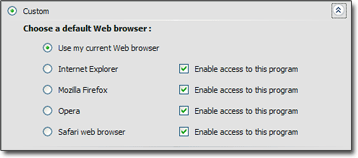 Don't forget to confirm your new default browser by clicking the OK button; next time you open a website, it will launch in the default browser you selected.
  Testing the default browser settings in Windows XP
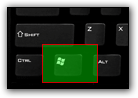 Here is a quick and easy way to test if your change of default web browser has been applied successfully: press the Windows logo key on your keyboard and press R at the same time: this will open the "Run" dialog.